
How to Use Obsidian to Take Meeting Notes?
You're already in Obsidian. You have a vault with projects, people notes, maybe a daily notes practice. What you don't have is meeting notes that connect to any of it. That's the specific problem this guide solves: building a meeting notes system inside an existing Obsidian PKB, where notes actually link to projects and people.
What we're building
By the end of this guide you'll have:
- A meeting note template that auto-fills the date and drops your cursor where you start typing
- A person note for each colleague that automatically shows every meeting they appeared in
- Action items you can find across your entire vault in one search
- A way to get full meeting transcripts and AI summaries into your vault without any copy-pasting — and without your data leaving your machine
Sources and credit
This guide draws from Obsidian's official documentation and real workflows shared by the community. Worth reading on their own:
- Managing notes for meetings and one-on-ones effectively — The 22k-view thread where the backlinks-as-CRM approach first clicked for a lot of people.
- What to do with processed meeting notes? — Decisions vs. raw notes. When to keep, when to extract, when to let go.
- Need Help with Dataview for Meeting Notes — Pulling meeting references into person notes automatically.
- Automate Base Fill-in for Meeting Notes — Using Bases to auto-surface meetings in person notes.
- From Daily Note, Create a New Note with a Template — One-click meeting note creation from your daily note using Meta Bind buttons.
How to Take Meeting Notes in Obsidian?
Step 1: Create the folder structure
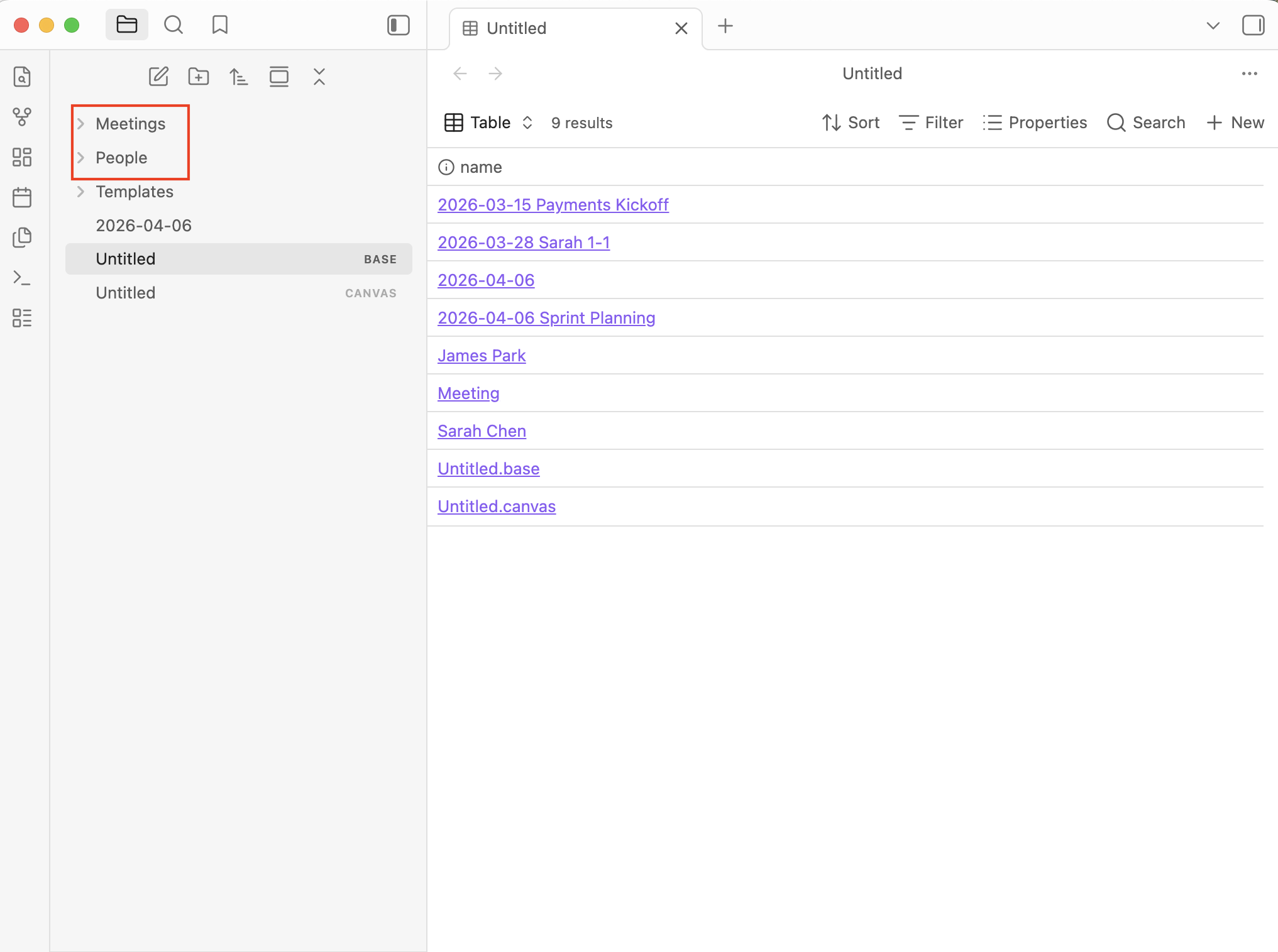
Open your vault. Create two folders:
Meetings/
People/
That's it. You don't need subfolders by month or year yet. If you end up with hundreds of meeting notes and want to organize by date later, Obsidian's search doesn't care about folder depth, it searches everything. Start flat.
If you already have an established vault, just add these two folders alongside whatever you have.
Step 2: Create a person note
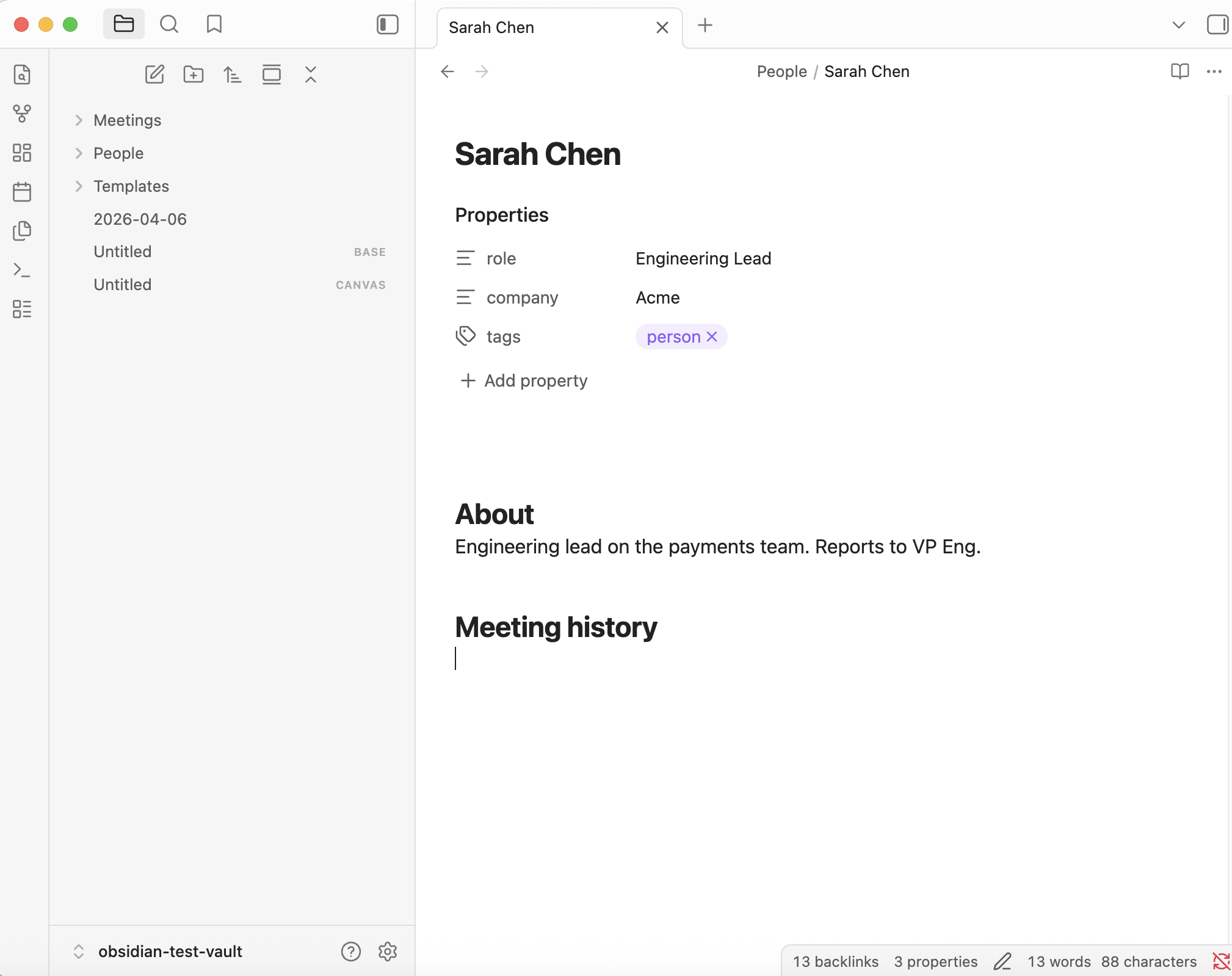
Before you touch templates or meetings, create your first person note. In the People/ folder, make a new note. Name it after someone you meet with regularly. Something like Sarah Chen.md.
Add this to the note:
---
role: Engineering Lead
company: Acme
tags:
  - person
---
## About
Engineering lead on the payments team. Reports to VP Eng.
## Meeting history
That's a person note. The role and company properties are there so you can search for them later — [company:Acme] finds everyone at Acme. The ## Meeting history section is going to fill itself. We'll get to that.
Make a few of these for people you meet with often. They don't need to be detailed. A name and a role is enough to start.
Step 3: Build the meeting note template
In your vault, create a Templates/ folder if you don't have one. Inside it, create a file called Meeting.md:
---
date: "{{date:YYYY-MM-DD}}"
type: meeting
attendees:
tags:
  - meeting
---
# {{title}}
**Attendees:**
## Notes
## Decisions
## Action items
- [ ]
Now go to Settings > Core Plugins > Templates and set your template folder to Templates/.
When you want to start a meeting note: create a new note in Meetings/, name it something like 2026-04-06 Product Sync, then hit Cmd+P and type "Insert template" and select your Meeting template. The date fills itself. Your cursor is ready.
Step 4: Fill in a real meeting note
Here's what a meeting note looks like after a meeting. The key habit: write names and topics as [[wikilinks]].
---
date: "2026-04-06"
type: meeting
attendees:
  - "[[Sarah Chen]]"
  - "[[James Park]]"
tags:
  - meeting
  - payments
---
# 2026-04-06 Sprint Planning
**Attendees:** [[Sarah Chen]], [[James Park]]
## Notes
- [[Sarah Chen]] walked through the payments migration timeline
- Target is end of Q2, but dependent on the [[PCI audit]] completing first
- [[James Park]] flagged that the staging environment won't be ready until May 15
- Need to decide if we push the launch or run a parallel environment
## Decisions
- We're keeping the Q2 target but building a fallback plan for parallel environments
- [[Sarah Chen]] owns the fallback proposal, due by Friday
## Action items
- [ ] [[Sarah Chen]] — Write up the parallel environment fallback plan by April 11
- [ ] [[James Park]] — Get staging timeline confirmed with infra team by April 9
- [ ] Follow up with [[Legal]] on PCI audit status
Look at what just happened:
- [[Sarah Chen]] appears in multiple places. Her person note now shows this meeting in backlinks — with the surrounding context of what she said, what she decided, and what she owes.
- [[PCI audit]] links to a topic note. If that note doesn't exist yet, that's fine. When the PCI audit becomes important enough to have its own page, every meeting that mentioned it is already connected.
- The action items use - [ ] task syntax. Obsidian's search can find these directly, and you can narrow it to a specific person.
Step 5: Person notes fill themselves
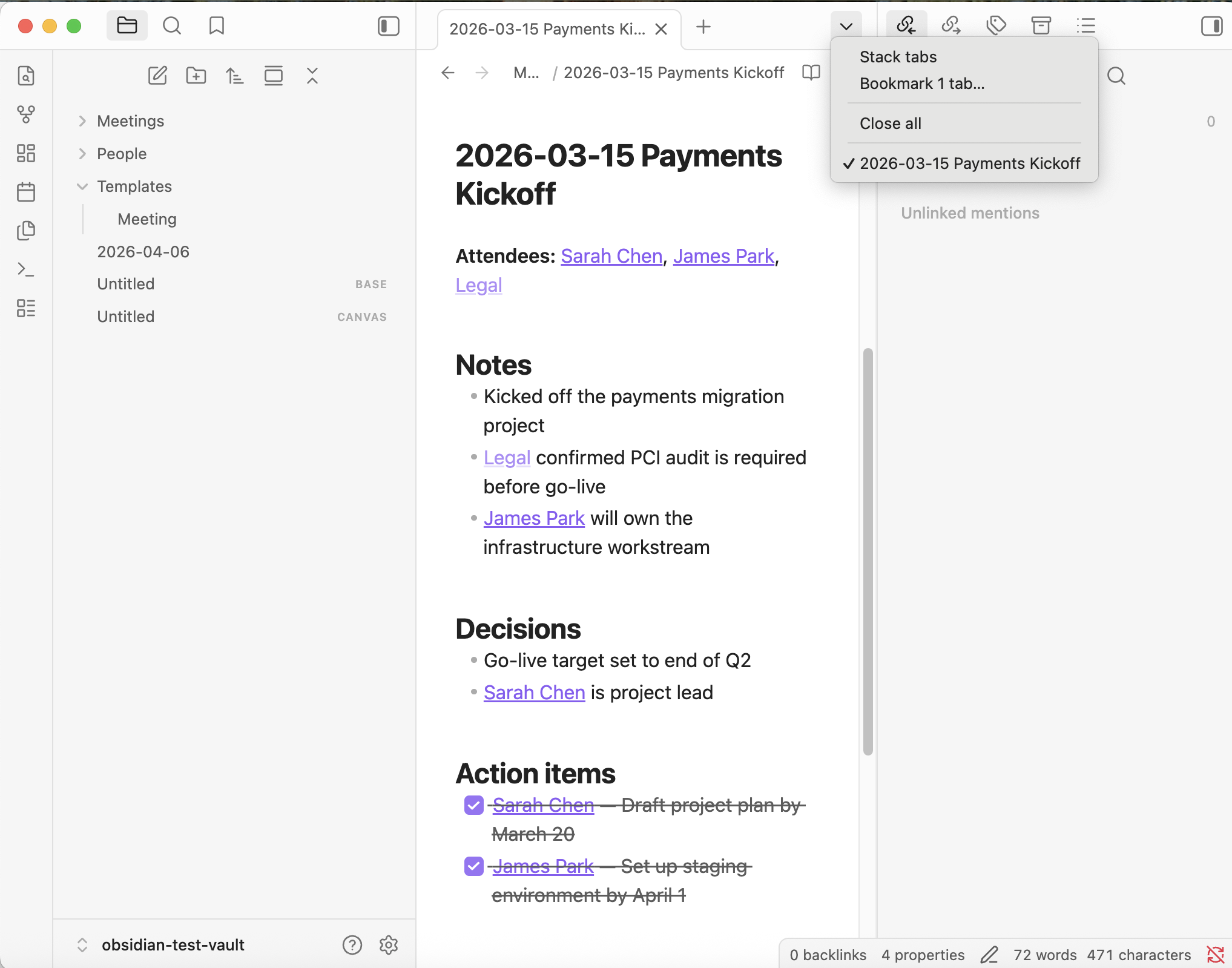
Open Sarah Chen.md in People/. Click the backlinks icon in the right sidebar. Every meeting where you wrote [[Sarah Chen]] shows up with surrounding context. You can see what was discussed, what she decided, what she owes — all without maintaining anything.
This is the approach from the Managing notes for meetings thread that resonated with the most people. No plugins. No queries. Just links and backlinks doing the work.
If you want a structured table view instead of backlinks, use a Base. The Automate Base Fill-in thread shows the exact filter:
filters:
  and:
    - file.hasLink(this.file.name)
    - 'type = "meeting"'
Embed this Base in Sarah's person note and it renders a table of every meeting note that links to her, filterable and sortable. This uses Obsidian's built-in Bases feature — no community plugins needed.
Step 6: Create meeting notes fast from your daily note
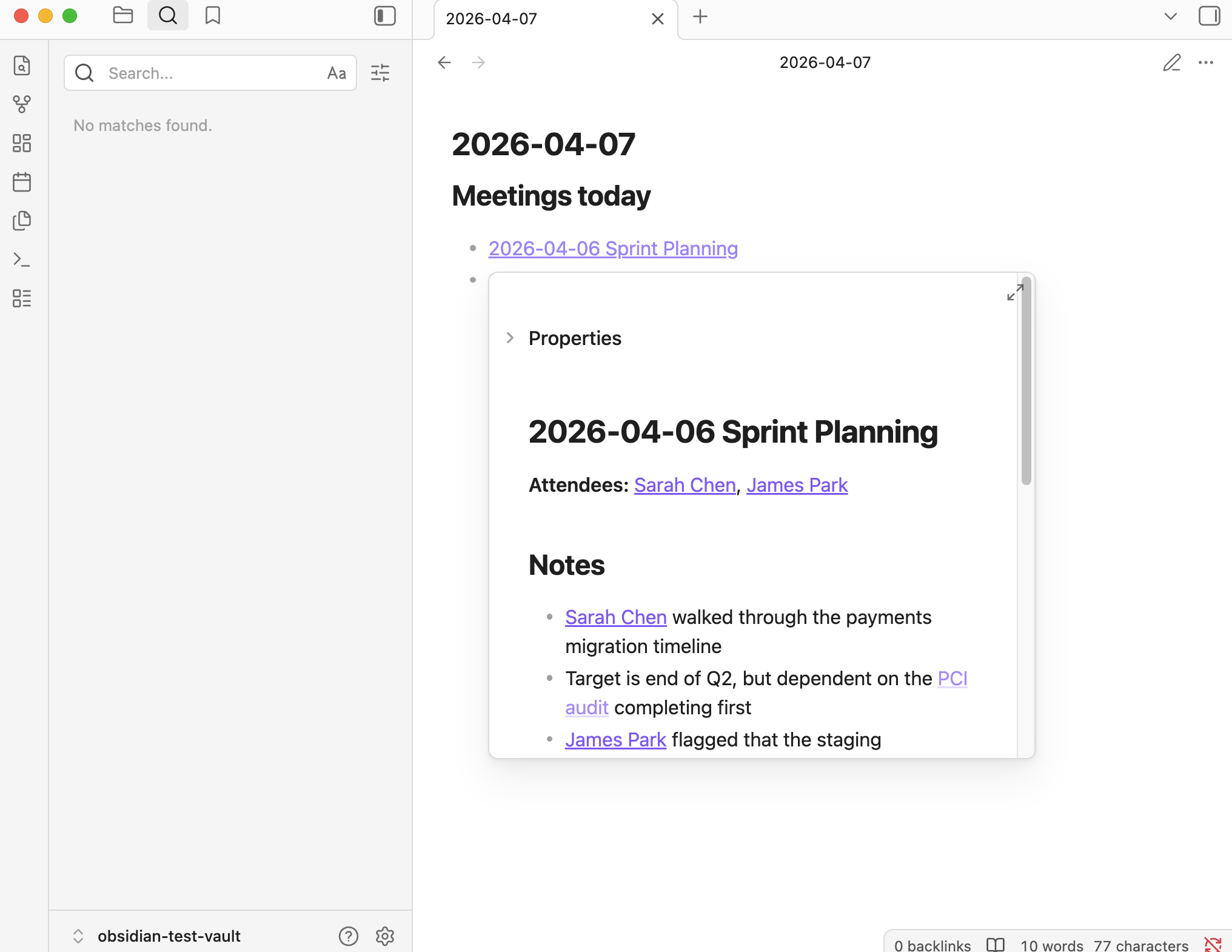
If you use Obsidian's Daily Notes plugin, you probably want to create meeting notes from there. The Daily Note to Meeting Note thread shows how to set up a one-click button using Meta Bind and Templater that:
- Creates a new note in your
Meetings/folder - Applies your meeting template
- Renames it with today's date
- Opens it in a new tab
Your daily note becomes a launchpad. Start of the day, you see your calendar, and for each meeting you click a button and you're ready.
If that's too much setup, just do it manually: Cmd+N, type the name, insert template. It takes five seconds.
Step 7: Finding things later
This is where the system pays off. Every query below has been tested in a live Obsidian vault.
Sarah's open action items:
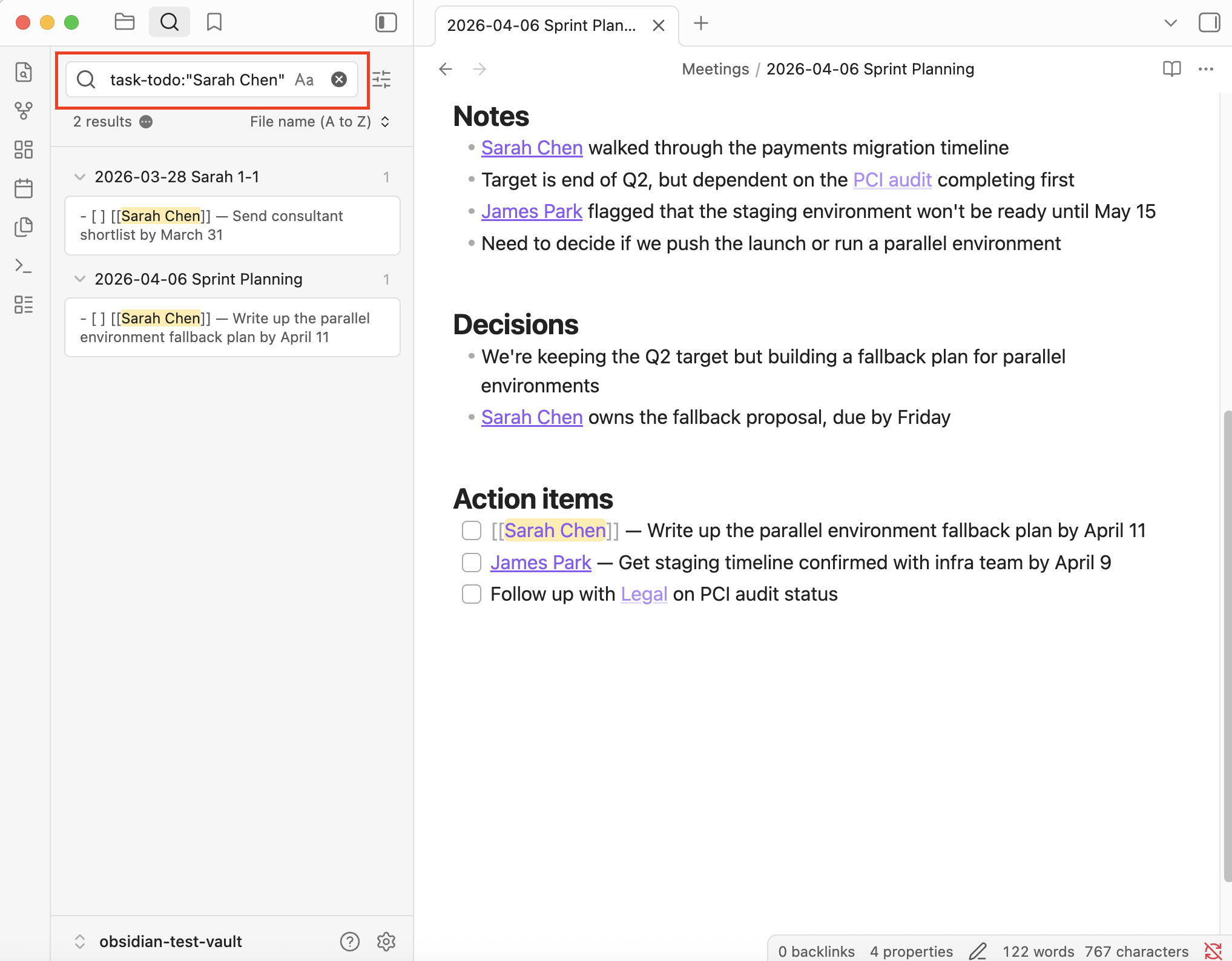
task-todo:"Sarah Chen"
Finds every incomplete task across your vault that mentions Sarah by name. Returns the exact task text with context.
All meetings tagged payments:
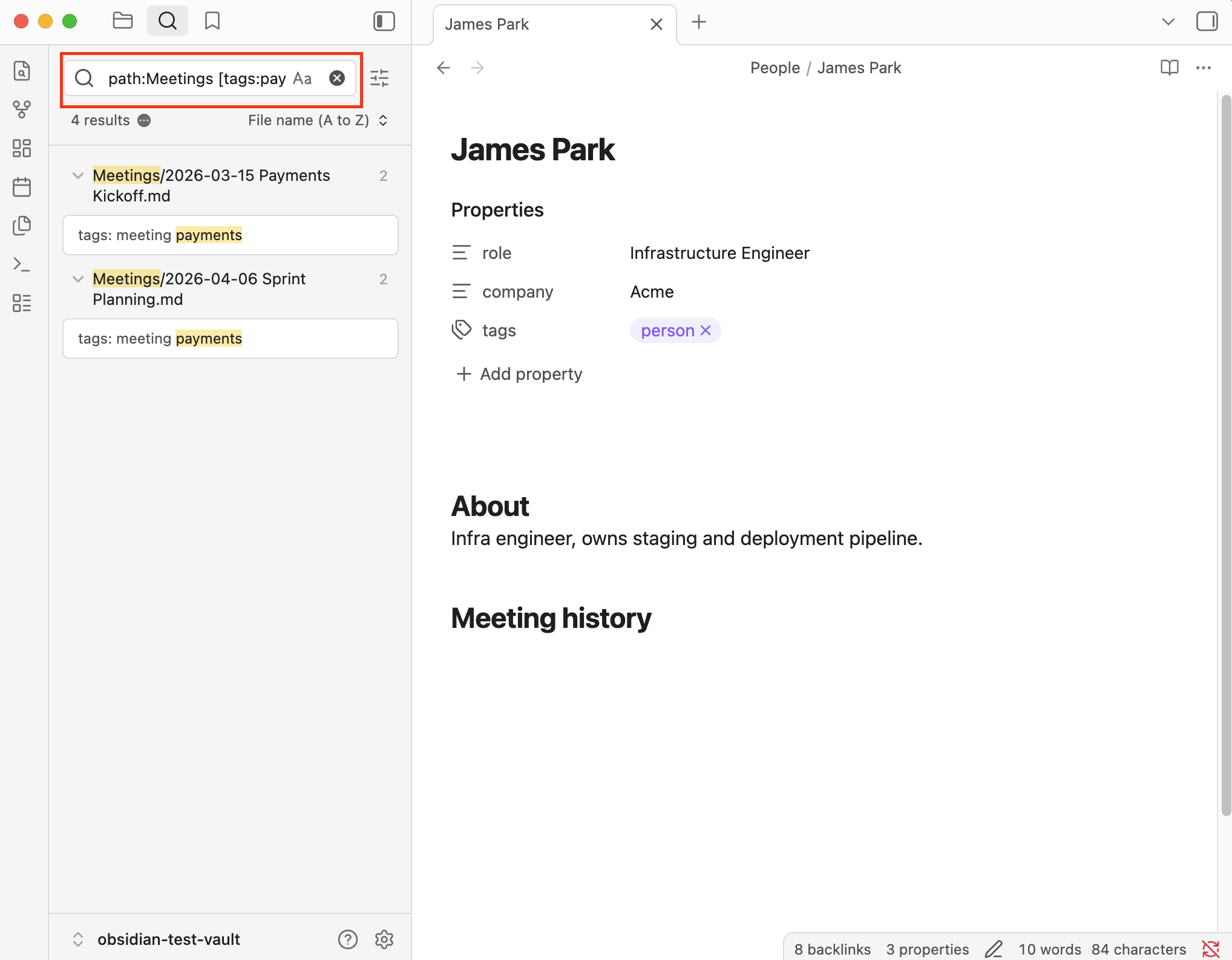
path:Meetings [tags:payments]
Finds meeting notes where the tags property includes "payments." Returns only files inside the Meetings folder.
Every meeting where PCI audit came up:
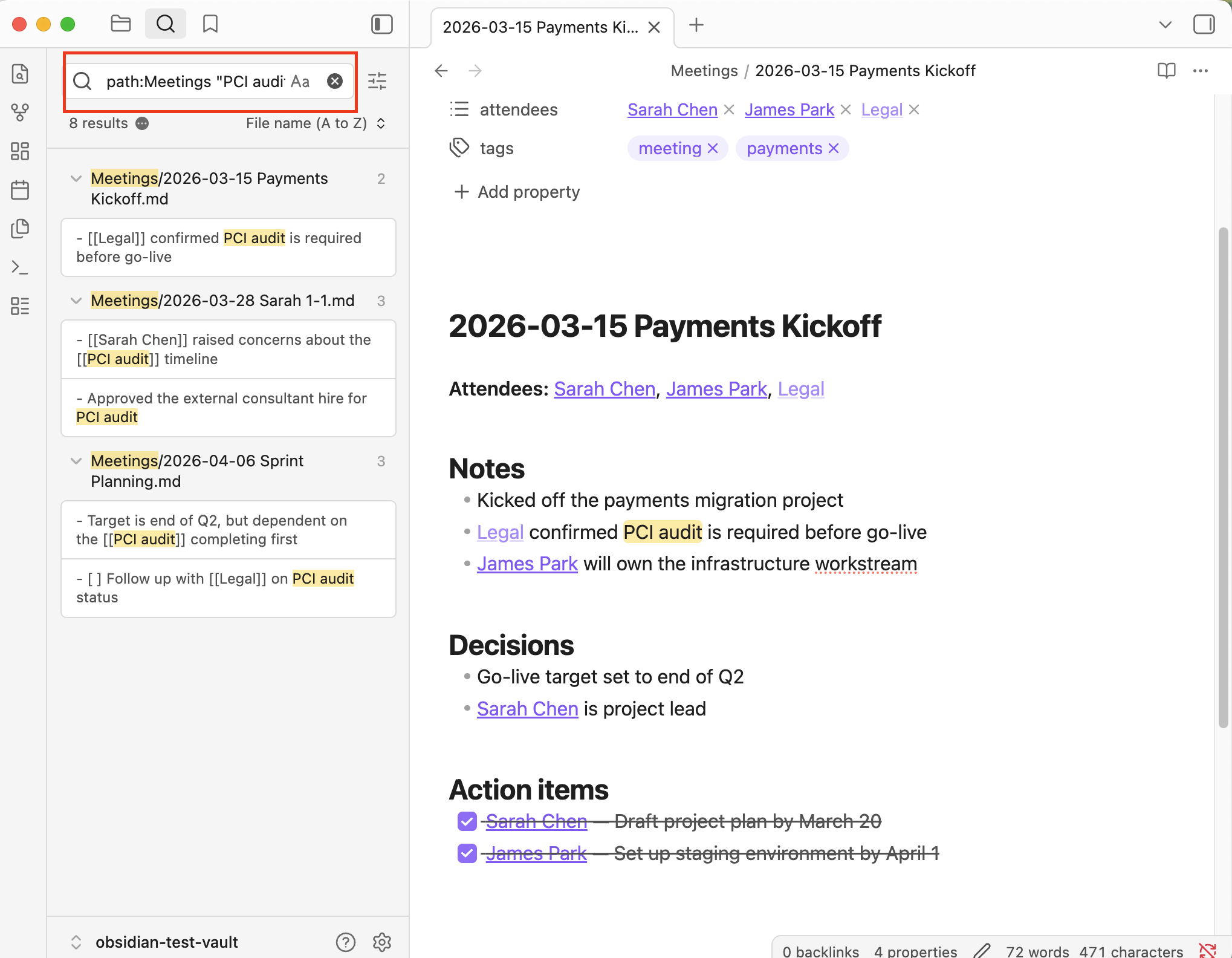
path:Meetings "PCI audit"
Finds every mention of "PCI audit" across all meeting notes, with surrounding context so you can see what was said about it.
All March meetings:
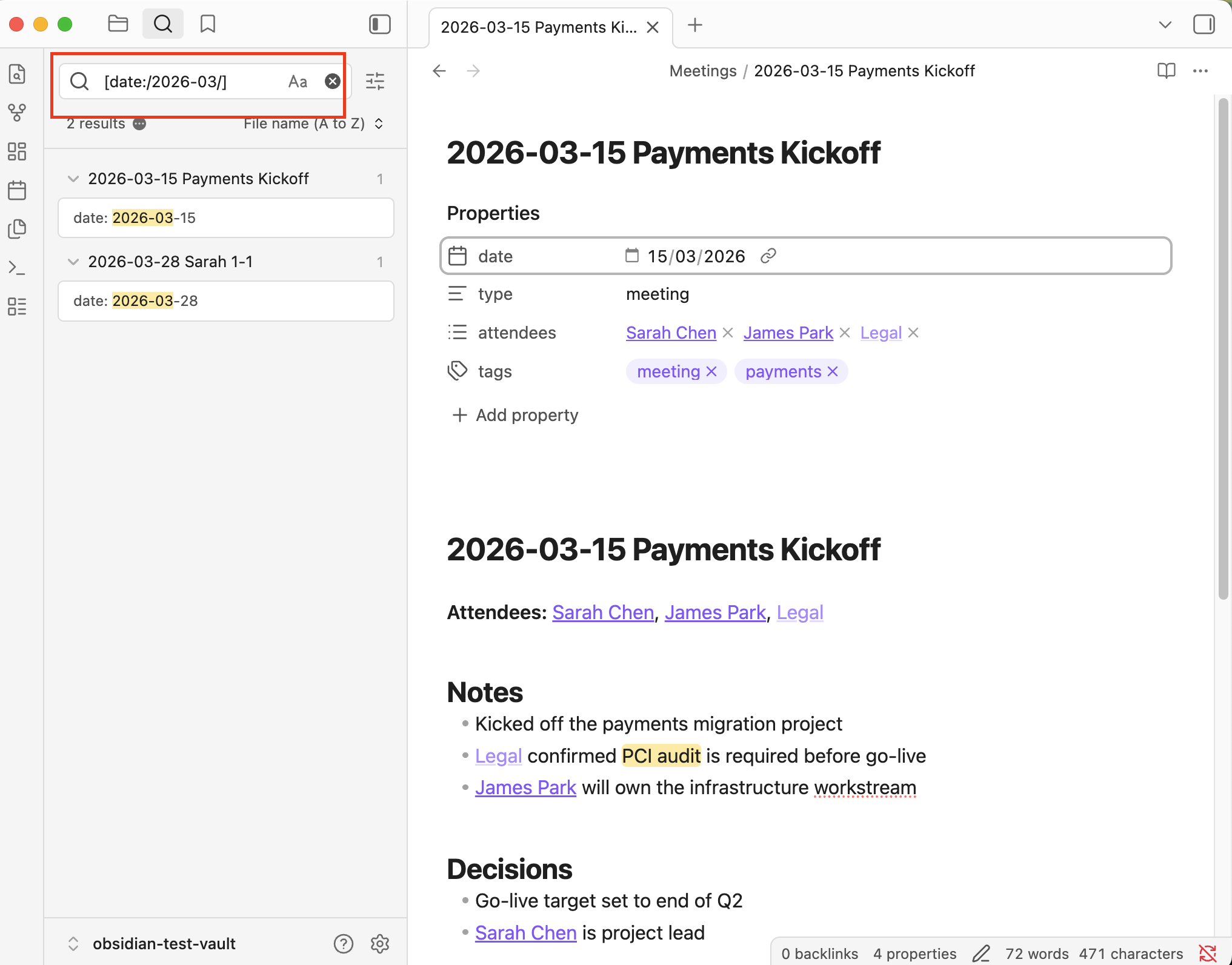
[date:/2026-03/]
Uses regex on the date property to find all notes with a March 2026 date. Works for any month — change the pattern to match what you need.
Everyone at a specific company:
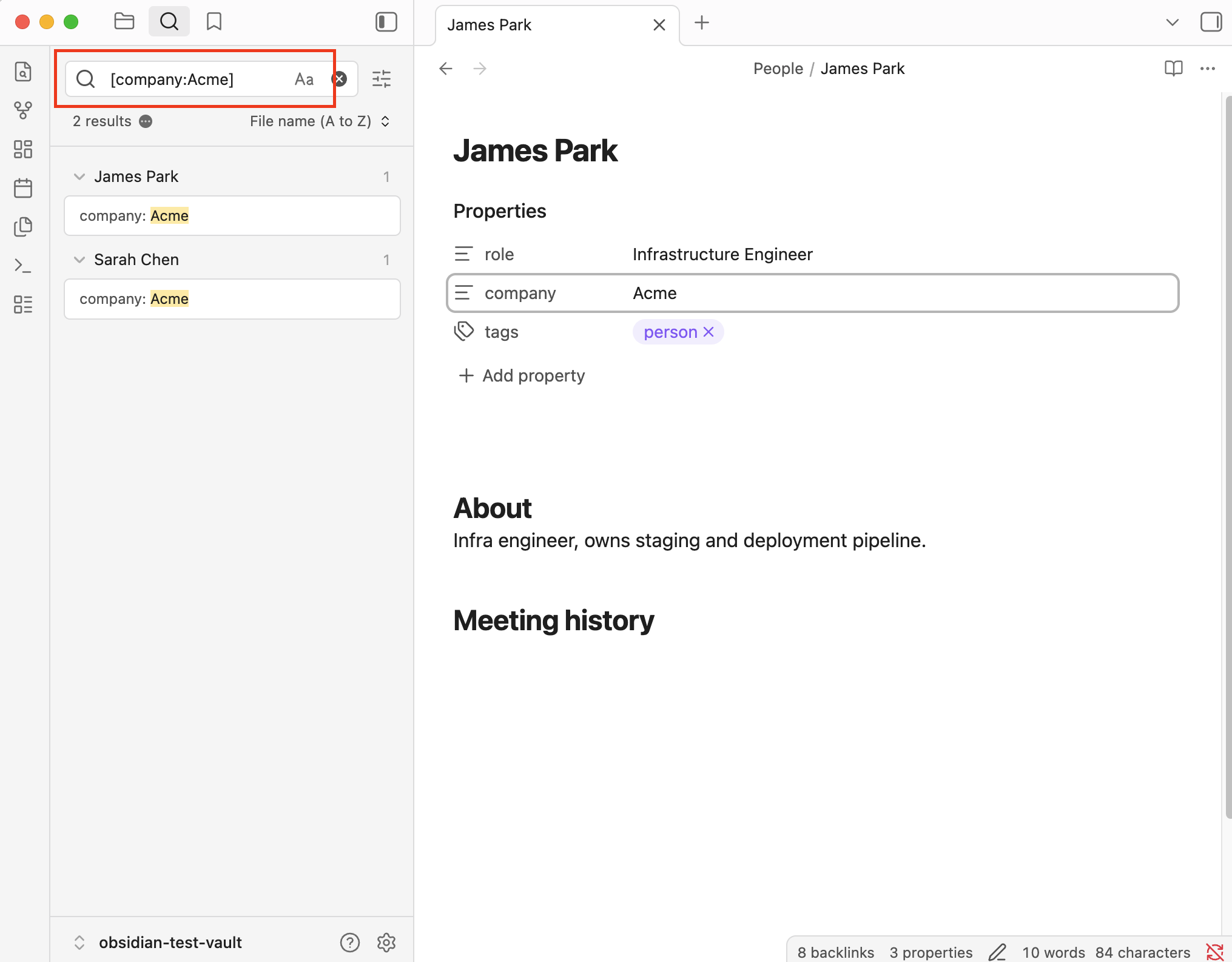
[company:Acme]
Searches the company property across person notes. Useful when you're preparing for a client meeting and want to see all your contacts there.
Step 8: Add Char for real-time transcription and AI notes
Everything up to this point relies on what you managed to type. In a 30-minute meeting, that's maybe 15% of what was said. The decision that was made at minute 22. The exact phrasing someone used when they pushed back on a deadline. The side comment that turns out to be the most important thing said all week. It's gone unless you happened to write it down.
You need transcription. And if you're the kind of person who chose Obsidian — you chose it because your files live on your machine, in a format you control, with no lock-in — you need transcription that works the same way.
Most meeting transcription tools don't. They store your data on their servers. They require monthly subscriptions. They join your call as a bot. They lock your transcripts in a proprietary format you can't move.
This is exactly the problem Char solves.
Char is an open-source AI notepad for meetings. Here's what it does and why it fits this system:
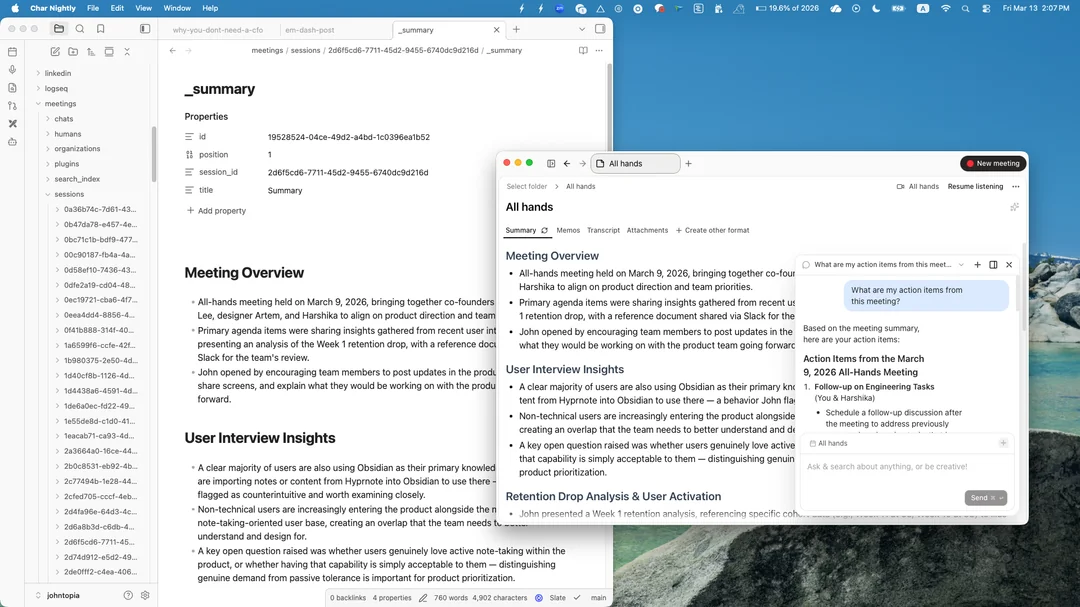
You point the output folder at your vault. This is the key. Set Char's output folder to your Meetings/ folder (or a subfolder like Meetings/Transcripts/). When Char finishes processing a meeting, the transcript and summary appear in your vault. Obsidian indexes them instantly. They're searchable, linkable, part of your system. No export. No copy-paste.
It records via system audio. No bot joins your Zoom. No calendar permissions. Char captures what your computer hears, which means it works with Zoom, Teams, Google Meet, phone calls, and in-person conversations with a mic. Nobody in the meeting knows it's running.
It transcribes in real time and generates structured summaries. Char combines your notes with the full transcript and produces a summary using AI. The summary lands as a file on your computer.
You choose the AI. Use Char's managed cloud service if you want simplicity. Bring your own API keys from OpenAI, Deepgram, or Anthropic if your company already has them. Run models locally through Ollama or LM Studio if nothing leaves your machine. Your security team can audit the code. You're not trusting a black box with your meeting recordings.
There's no lock-in. Every file Char produces is a file on your computer. Stop using Char and every transcript is still there, in your vault, working. There's nothing to export because nothing was ever locked up.
If you use Obsidian, you already made this choice once: files on your machine, open format, your control. Char is the same choice applied to meeting recordings.
Your Obsidian Meeting Notes Workflow
Monday morning. You open Obsidian.
- You check your calendar and see three meetings today. From your daily note, you create a meeting note for the first one:
2026-04-07 Sprint Planning. - The meeting starts. You open Char. It starts recording system audio. You take notes in Obsidian: quick bullets, [[wikilinks]] for people and topics as they come up.
- The meeting ends. You stop Char. It processes the recording and drops a transcript and structured summary into your vault. You pull the key decisions and action items to the top of your meeting note.
- Before your 1:1 with Sarah that afternoon, you open [[Sarah Chen]] and glance at backlinks. You can see every meeting she's been in this month, what she committed to, what's still open. You search task-todo:"Sarah Chen" and it shows rwo open items from last week.
- In the 1:1, you reference the specific thing she said in the sprint planning meeting. You know the exact phrasing because it's in the transcript. You're not guessing. You're not paraphrasing from memory. You're reading her words back from a file in your vault.
That's the system. Templates give you structure. Links connect everything. Backlinks surface history. Search finds anything. Char fills the gap between what you typed and what was actually said. Download Char now and try it on your next meeting.